CPD
Under the CPD menu we have two options: Record and Period. The format of this reporting method has been taken from BACP recommendations at the time of development. There are two stages to recording CPD, but before we can record CPD we need to set up the recording periods, do this by selecting the “Period” sub-menu and then clicking the “Create Period” button at the top right. The CPD recording period is a 12-month period which is defined by the date you renew your professional body membership. For example, if you joined a professional body on 1 Oct it would run for 12 months until 30 Sept the following year, if you look at the screenshot you can see that we have used these dates to set up our current recording period. You can have more than one recording period set upon your system for recording CPD in advance, just remember to log your records under the right recording period.

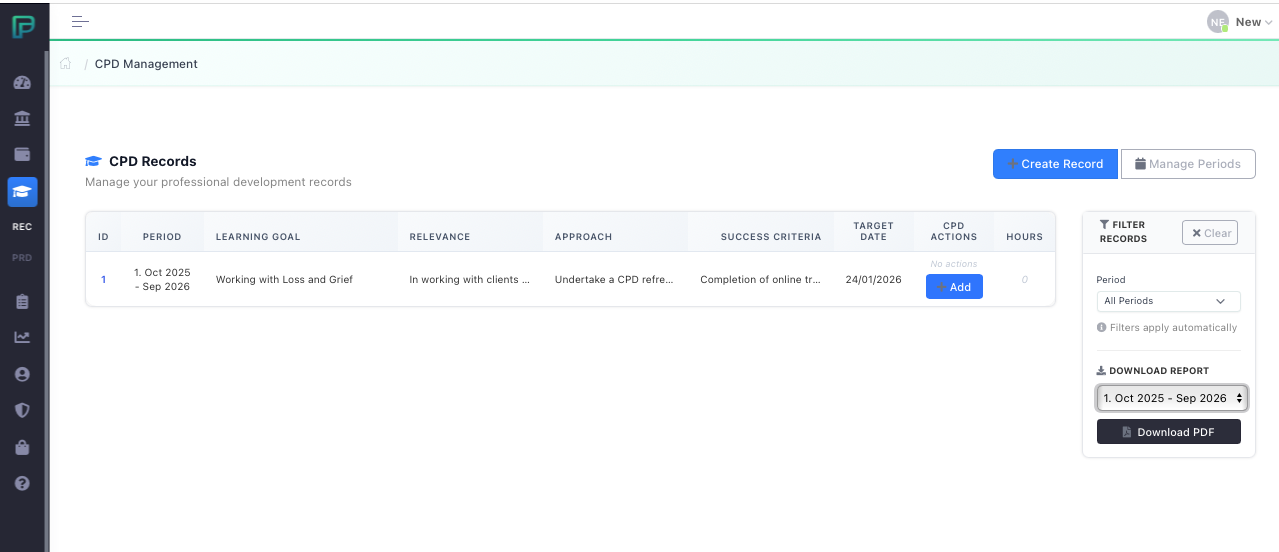
CPD Entry Stage 1
Once we have set up our recording period we can start to enter CPD records. From the CPD Records page click “Create Record” then enter the details for the CPD that you intend to undertake. Once you have completed the form click “Create Record” at the bottom to return to the CPD Records page. Here you will see the entry you have just made onto the system, this completes stage 1 and you have no further action until you have completed or started progress on that CPD task. You can add as many records as you wish here.
CPD Entry Stage 2
Once you have completed/attended your CPD, you will need to record this achievement on the system, to do this we go to the CPD Records page. Find the record that you wish to log this CPD action against, click “Add” this will take you to the entry. Here we can add our new CPD action activity details and learning outcomes. Once we have done this, we can save the record by clicking on the “Create Action” button at the bottom of the page. The following page that appears shows both our CPD record at the top and our corresponding action at the bottom, all of which can be edited if we need to. Let’s return to the CPD records page by clicking the “Back to Records” button at the top right of the screen.
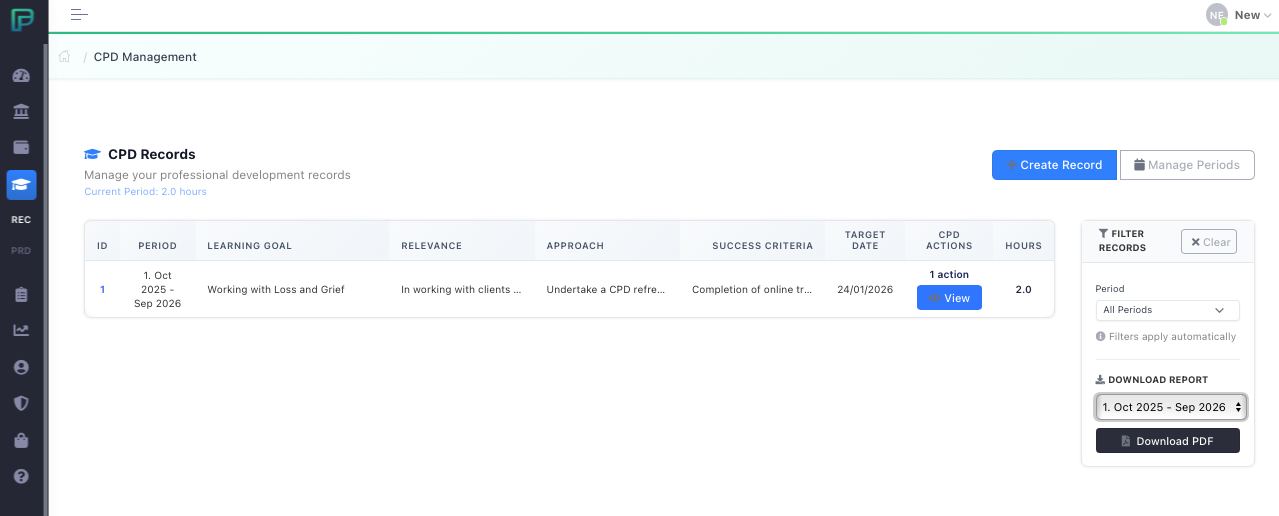
We can see the right-hand column which is labelled “CPD Actions” displays 1 action next it that we can see the number of CPD hours that were logged against it this record. If we want to get back to view and edit the whole CPD record we can do this by selecting the ID number of the record in the left-hand column.
This two-stage process should be repeated for all your CPD, at any point in time you can select to download a period to report on, the PDF report that this creates displays the tasks and the actions within the desired reporting period. This report can then be used as supporting evidence for your professional body.