Signup
From the home page of the main website click the signup button. This will take you to the “Create Account” screen. You will need to enter a username name, email address and create a password at this stage. PLEASE NOTE, both the username and password are case sensitive.
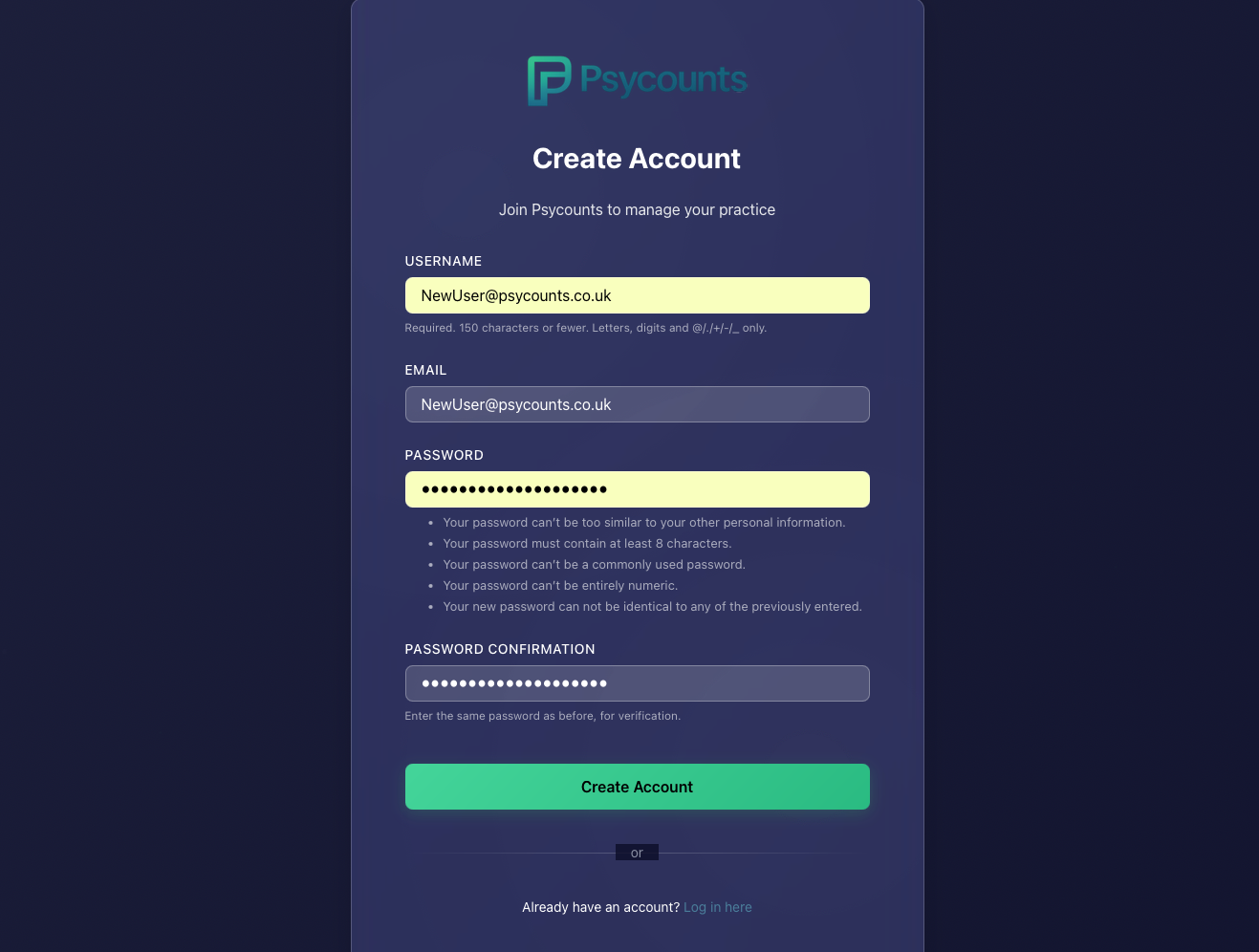
Once you click on the “Create Account” button it will send an email to you and take you to the Two Factor Authentication (2FA) stage. This is an additional security feature introduced in order to protect your account.
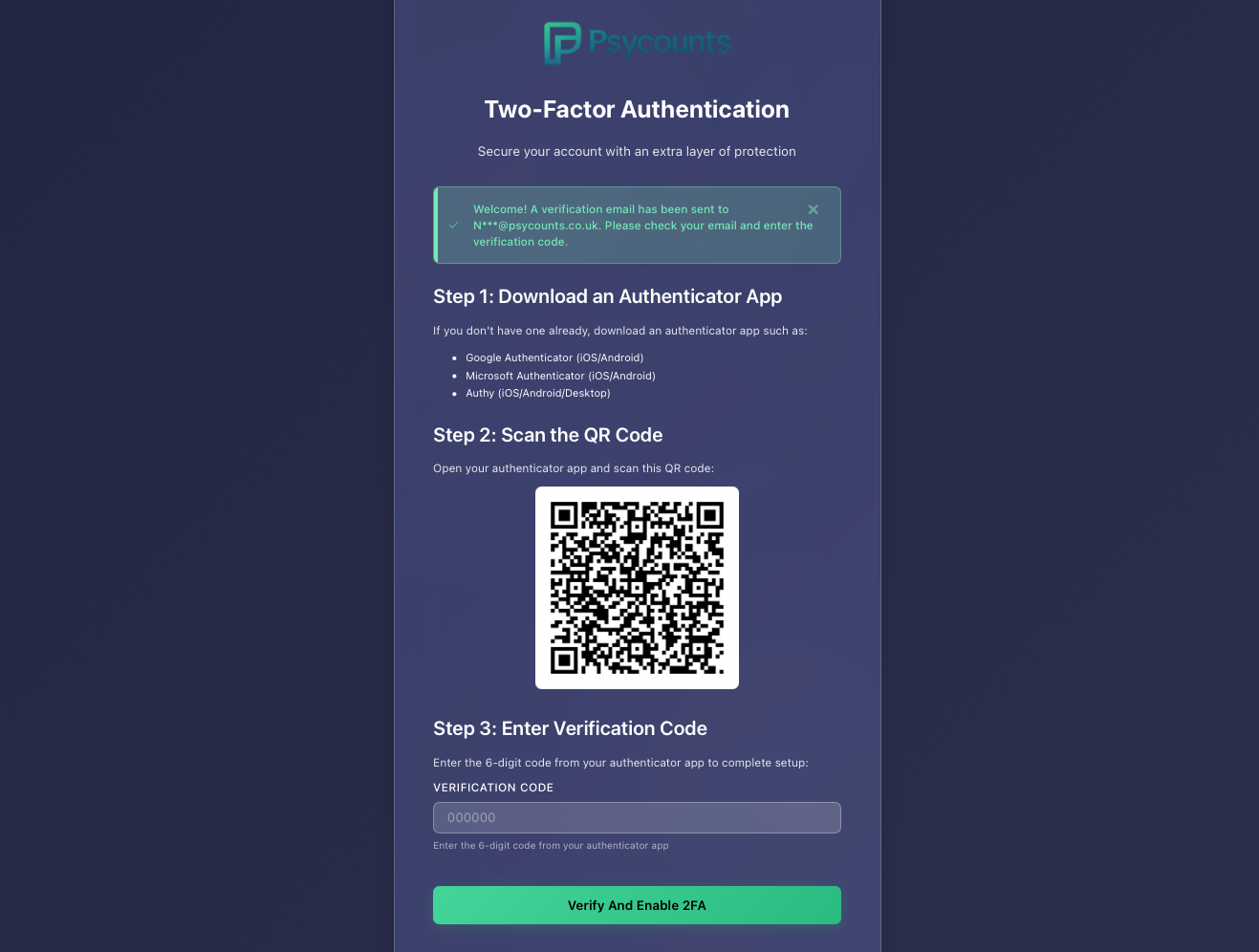
You will need an Authenticator App in order to proceed. There are several available to download, such as “Google Authenticator” “Microsoft Authenticator” and “Authy”. Any one of these will work and they are free.
Once you have completed this stage the next screen presented will ask you to verify your email address. Do this by entering the code which was emailed to you previously.
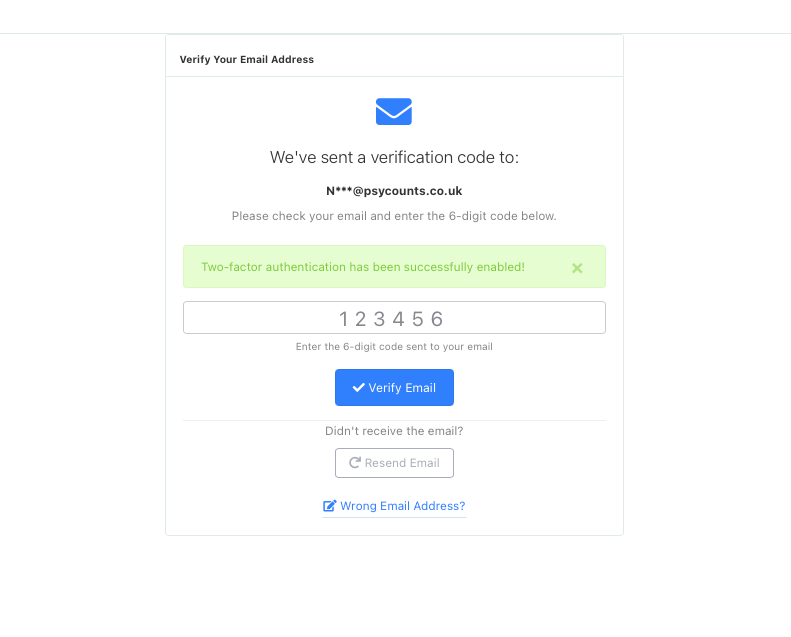
After verifying your email address you will be presented with the Subscription page, click “Subscribe Now”.
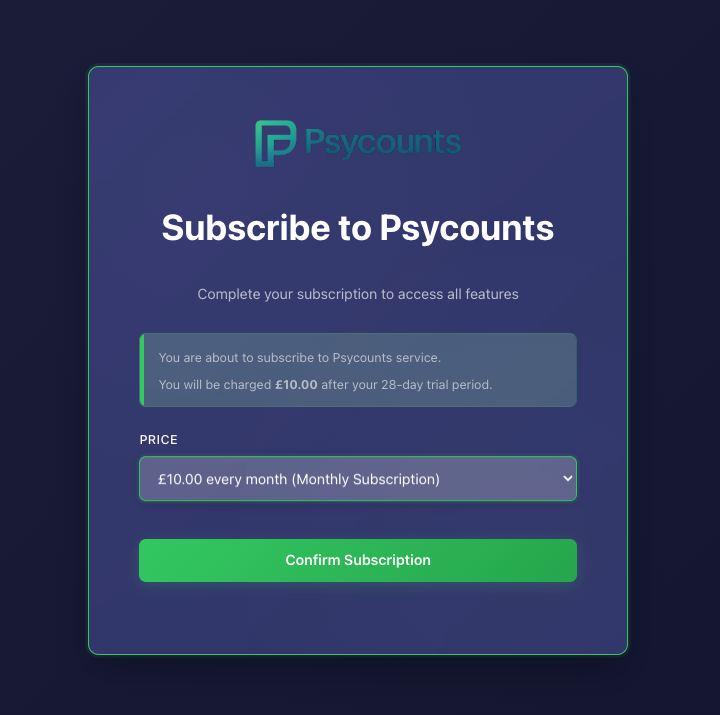
On the following page complete the details on the payment screen.
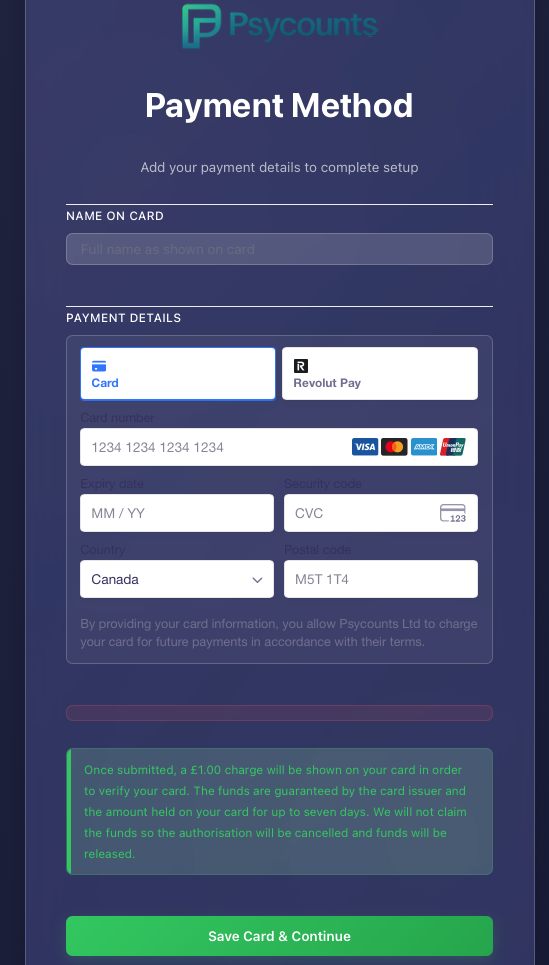
Click “Save Card & Continue” at this point your card will be checked for validation by the system, a £1 charge will appear, but it will not be collected.

Confirm your subscription and you will be taken to the Dashboard where you will need to start setting up your profile.
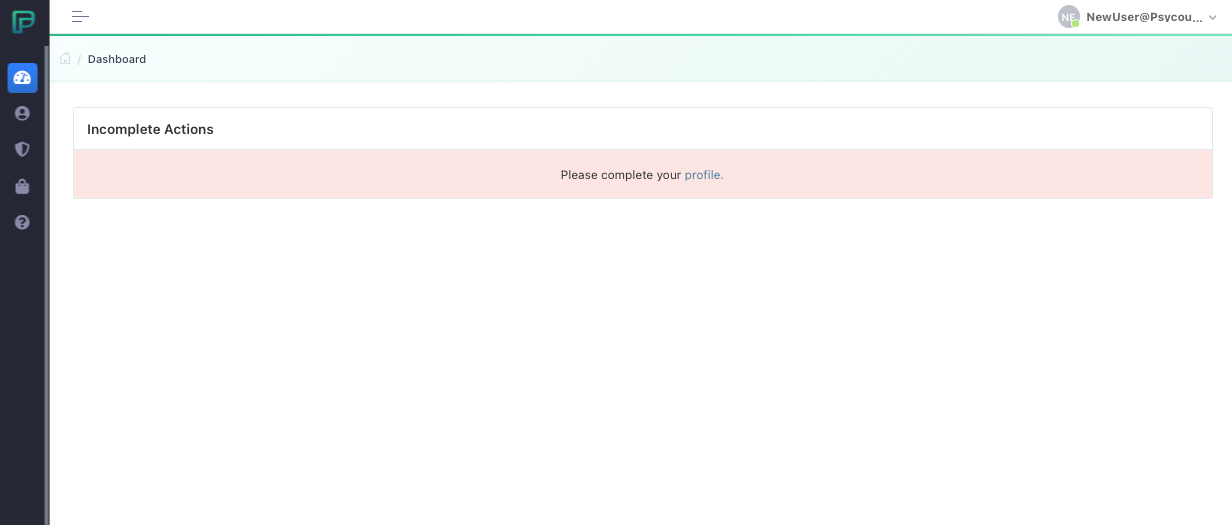
Click on the prompt “please complete your profile”
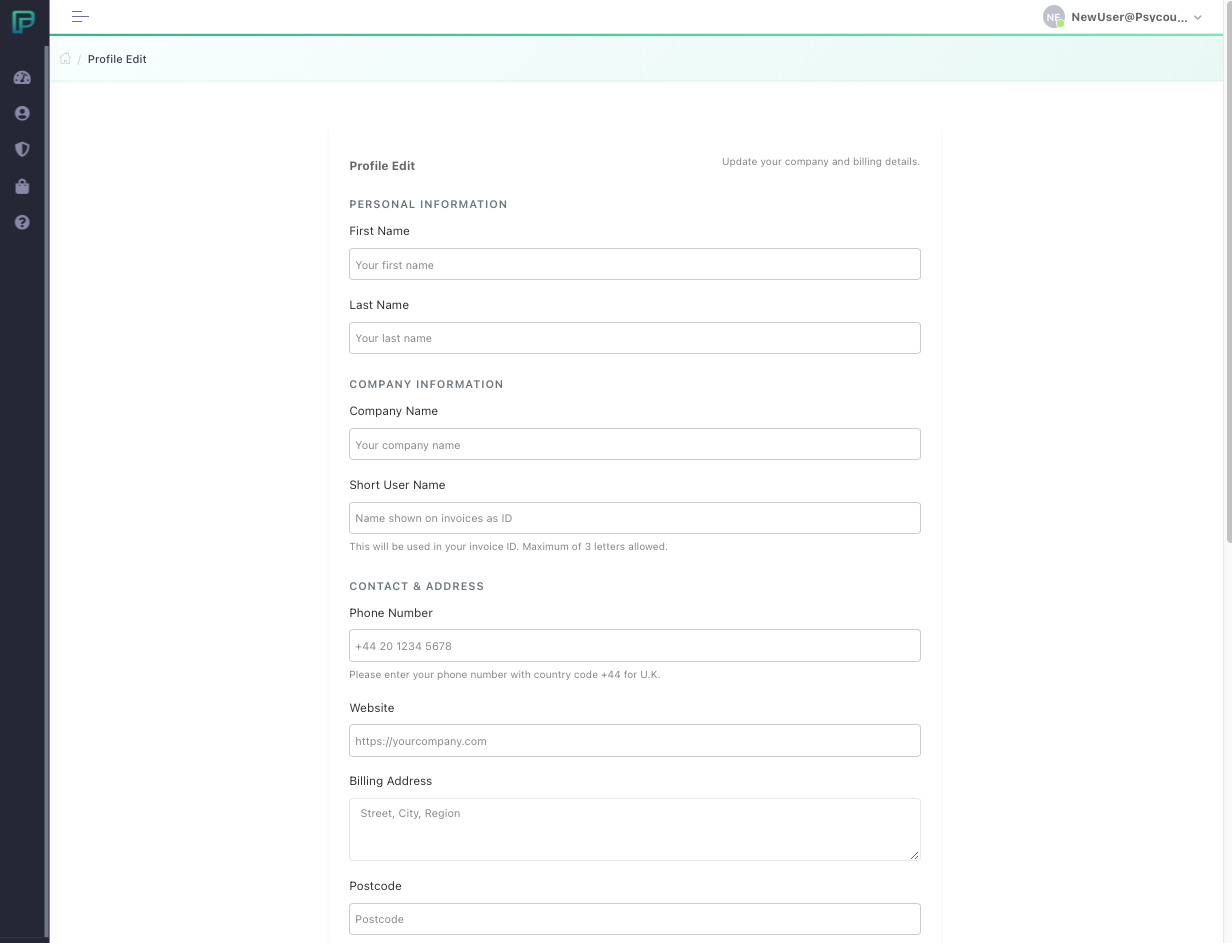
This page is where you enter the information you want your clients to see on the PDF invoice that Psycounts generates for you send to them. The bank account details you enter here, are the account details that your clients will see on their invoice, assuming this is how you collect payments. After clicking the “Save” button we are taken through to the Dashboard.
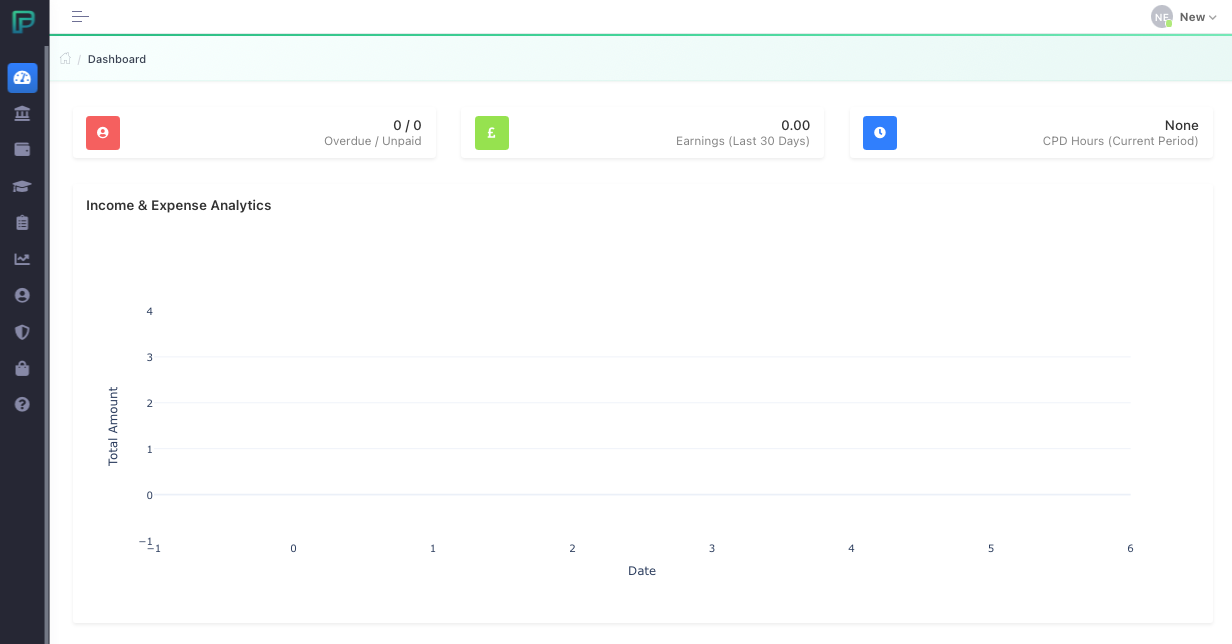
It’s blank at the moment, because we haven’t generated any invoices, but once we start to create invoices, we will see a graph form over the days, months and years.
At this stage you have completed the sign-up process, your account is live and you are ready to start adding the services you offer. To the left of the screen, you will find several icons. Hover over these with your mouse to reveal the menu.